

|
|
|
|
|
|
|
|
|
|
|
|
|
|
|
|

|
|
|
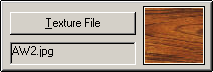 |
Texture File |
|||
|
The Texture File button opens up a file selection dialog box that lets you choose a texture file. The choices are automatically restricted to the two formats recognized by Picture Frame, JPG and PNG. After a texture file is selected, the box below the Texture File button shows only the file name and not the folder path. But the plugin remembers the full path and always takes you back to the most recent folder where a file selection was made. Note that when Picture Frame is initially installed and running, there is no texture file selected. This can also happen if a previously selected texture file has been moved and the plugin can't find the file anymore. When this happens the plugin by default fills in a solid 50% intensity gray instead of a texture and applies the shading to it as though it were a normal texture. Q: So where can I get textures? Use any web search engine and look for "free textures". Not all that you find will be useful for frames, but some are. For example, here are two sources that you can start with:
Some of the wood textures (av.jpg and ay.jpg) from Texture Land and a few samples from Absolute Cross (Texture Pack 3) were used for the examples in these help pages. New Virtual Research has no affiliation with either Texture Land or Absolute Cross. If you feel creative and ambitious and want to add more of a personal touch to your frames, you might want to try creating your own textures. Here's a short tutorial on creating simple molding textures on this website. And there are lots of other tutorials on the web. Use any search engine and look for "texture tutorial".
|
||||

| Copyright © 1994-2013 Tom Carlino | ||